Once you start the payment process you will be taken to our Beacon Website were you need complete the membership form. Once complete you must press the grey “make payment” button at the bottom of the form (see fig. 1 below). This will then take you to the PayPal merchant's website.
While on the PayPal website you will need the following information:
- Email Address
- Phone contact
- Credit/debit card details
- Your address
Please note that you can pay by credit or debit card and you do not need to create a PayPal account as the process can be completed using a guest account. However, if you do have a PayPal account, then can use it to make a payment.
If you have paid before using the PayPal Guest account or you are familiar with the process click the button below to proceed.
Otherwise you may find it helpful to read the following instructions first:
- On the first page (see fig. 2) click the button at the bottom : “Pay by Credit or Debit card”. Do not fill in the email address or click “Next”
- On the second page (see fig. 3) now enter your email address and click “Continue to Payment”
- On the third page (see fig. 4) enter the your credit card details including a phone number contact.
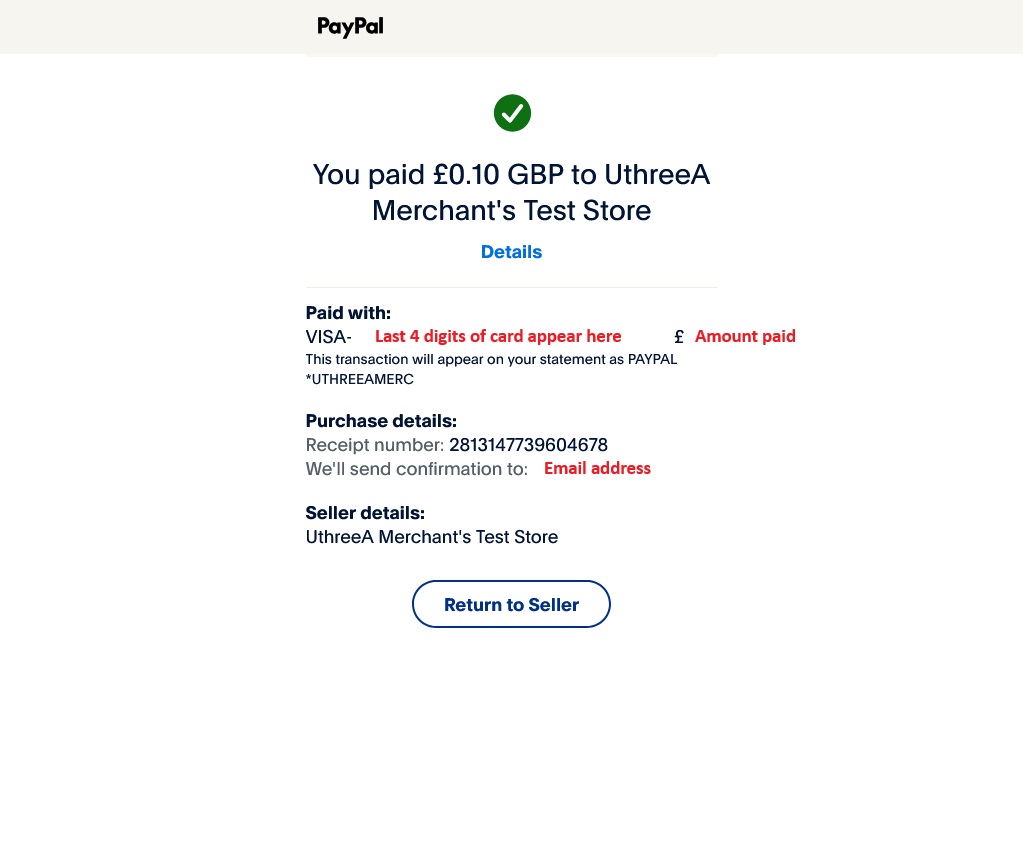
NOTE: After you enter your postcode, which is the last field you need to enter, uncheck the following checkbox next to “Save information and create your PayPal account”. This will remove the information required for a PayPal account (see fig.5). Once unchecked simply click “Pay now as guest”. If you have missed any fields they will be marked in red and will need to be completed. - If all the details are accepted you will be taken to a forth page (see fig. 6) indicating your payment has been accepted.
Fig. 1 - Beacon new membership form
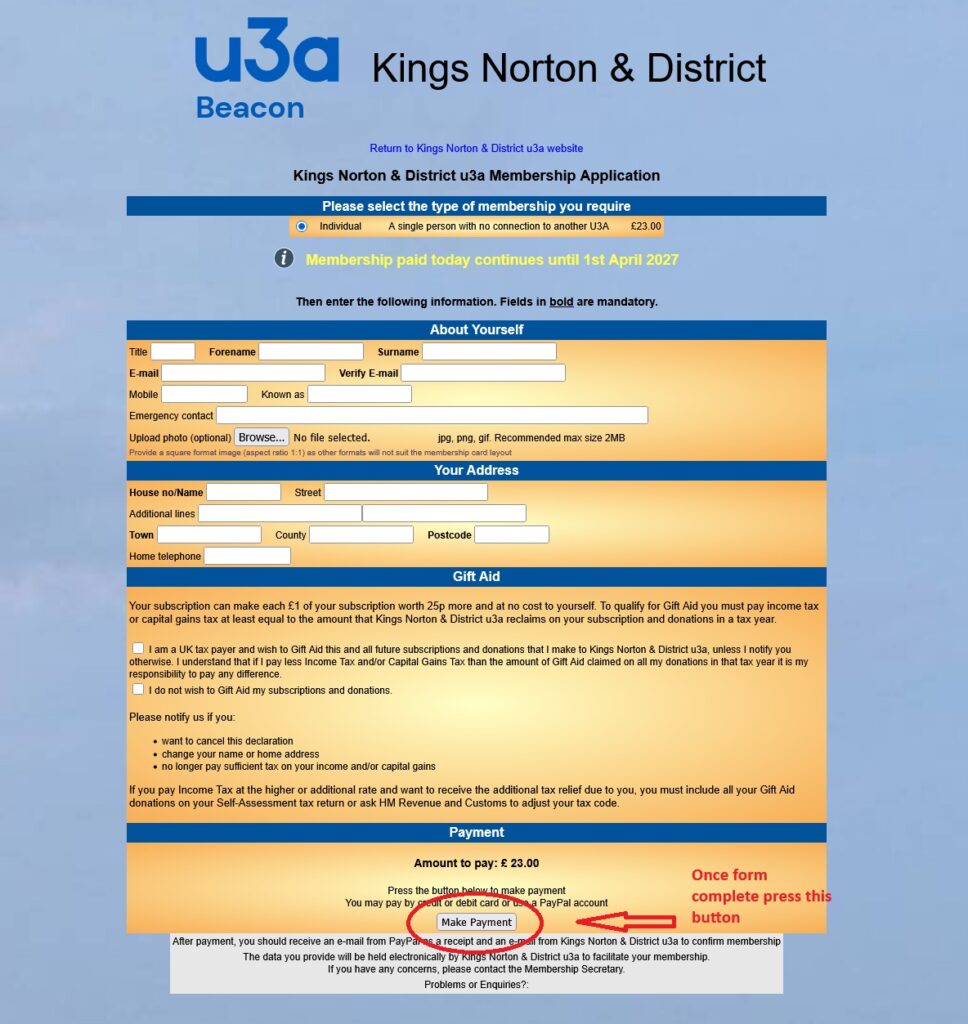
Fig. 2 - First PayPal page. Select "Pay by Debit or Credit Card"
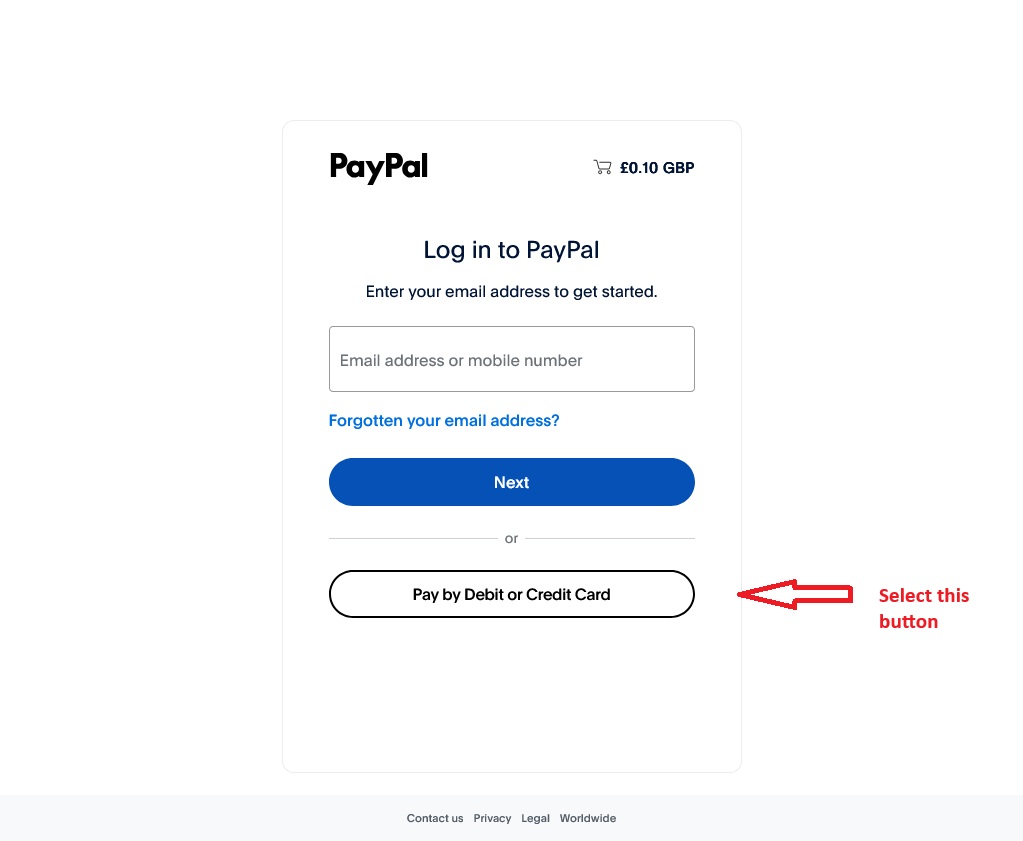
Fig. 3 - Second PayPal Dialogue. Now enter your email and press "Continue to Payment"
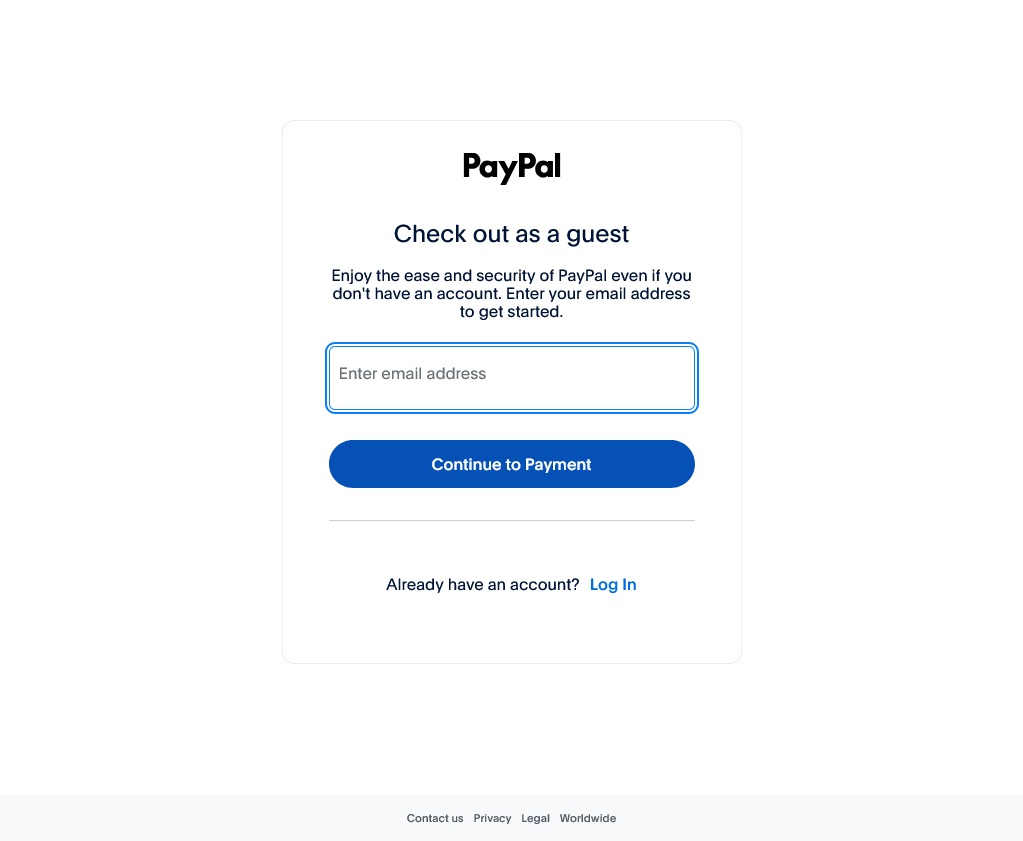
Fig. 4 - Enter credit card details and uncheck the highlighted checkbox
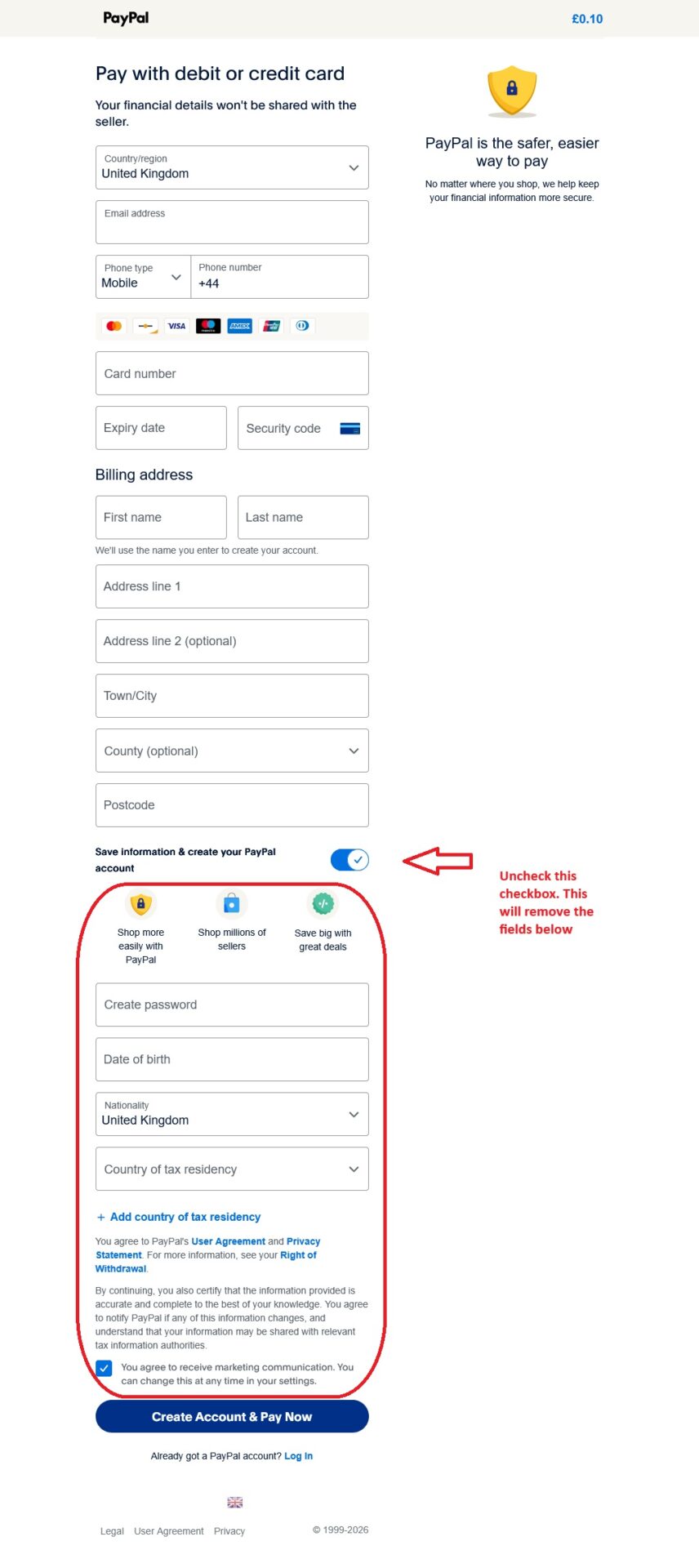
Fig. 5 - Once the checkbox is unchecked the fields marked in red above are removed. Now click "Pay as Guest"
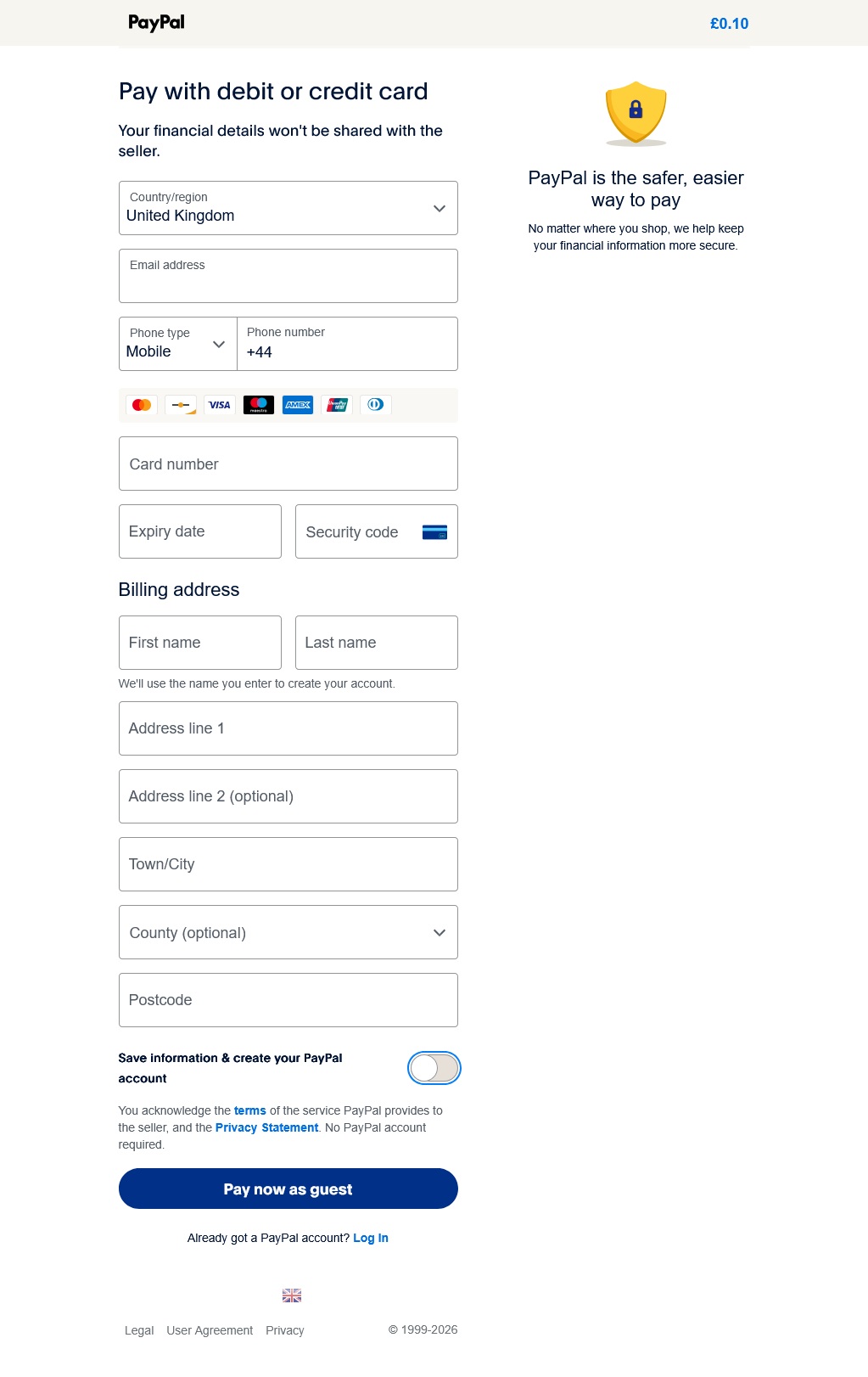
Fig. 6 - Once card has been accepted the following page will be displayed. The process is now complete